
Vegas Pro is a wonderful video editing tool especially with the most advanced color corrector. It is one of the few applications on the planet that can take anything you throw at it. MP4 file format seems one of Vegas Pro supported native video formats for import. But the weird thing is that, sometimes you will find it a painful experience for Vegas Pro to import MP4 files created by smartphone, camera, camcorder and more. Most of the time, you can only add the HEVC, H.264 and MPE-4 MP4 file the timeline of Vegas Pro as an audio track, instead of a video track. Just sound, no video. And you may have problems like these:
“Now with my new fresh install of Vegas Pro 17, these same .mp4 files import as audio only and I cannot seem to find how to have both audio and video to import.”
“I recently updated to Vegas Pro 23, and every time I import a mp4 video file I only get the audio track of that file. I can open the file outside of Vegas Pro with VLC just fine, and it plays both audio and video. The imported file says that there is no framerate, and that the file is audio only.”
Why you cannot import a MP4 file to Vegas Pro or Meet audio / video missing issues?
There are three possible reasons that may cause file import error:
Possible Reason 1: Your Vegas Pro software got problem
Your Vegas Pro version is too old to support the MP4 files. In this case, you can upgrade your Vegas Pro from the old version to the newest version (Currently, the latest version is Vegas Pro 23 and make sure you’re not using a free version).
Possible Reason 2: Your MP4 files are corrupted
You can check whether your MP4 file can be recognized and played properly using other programs. If not, repair it using a professional video repair tool.
Possible Reason 3: Some required codec is missing
Broadly speaking, the major cause is that some required codec is missing or incompatible codec so that the file format is not supported. Vegas Pro supports MP4 files, but MP4 is a multimedia container format which contains various types of data encoded using one of several different codecs. A MP4 file can use MPEG-4, MPEG, H.264, HEVC, GoPro CineForm, or other video codec for compression. To import MP4 files successfully, Vegas Pro needs to be compatible with the specific codecs used in the MP4 files. If not, you’ll experience MP4 importing error. Therefore, transocding MP4 file is the the most effective yet easiest solution recommended by us.
Note: Vegas Pro (including the latest version) is hard to read 10-bit Videos according to a growing mass of user reports. This is actually a known issue cause by long-GOP codec. The common ways to fix it out is upgrading your PC/graphics card and transcoding the long-Gop souce video to an editing-friendly codec like MPEG-2 or QuickTime AVC codec.
Incompatible codec is the major cause for “Can’t Import MP4 File”
100% Working Solution: Transcode Unrecognized MP4 File to a Fully Vegas Pro Compatible Format.
As the analytics above, the major cause for “Can’t import MP4 video files to Vegas Pro or MP4 file import as audio only” is some required codec is missing or incompatible codec issue. Therefore, transcoding should be a very helpful method.
To convert MP4 files for Vegas Pro, you’re recommended to adopt Acrok Video Converter Ultimate for help. This tool is able to work with various MP4 files, no matter what codecs are wrapped in and no matter what devices record.
With it, you can easily and fast encode/re-encode Vegas Pro incompatible media including but not limited to MP4, MOV, MKV, VOB, WMV, etc. to a format such as MPeG-2, QuickTime AVC, ProRes, DNxHD, AIC, or H.264. These formats can be well compatible with Vegas Pro. MPeG-2 can preserve image quality with the smallest file size. ProRes preserve the best image quality and provides better performance when editing in Vegas Pro, but creates much larger files that use more storage space than MPEG-2 files use.
[Tutorial] How to Convert MP4 to Vegas Pro Edit-friendly codec/format
Step 1. Load the source MP4 file(s)
Download and launch Acrok Video Converter Ultiamte on Windows PC. Click Add File to import your MP4 video(s).
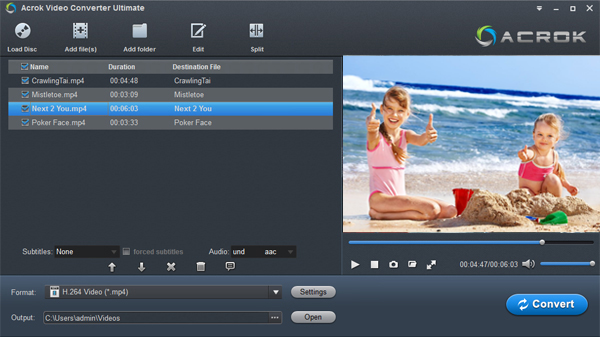
Step 2. Select a Vegas Pro edit-friendly format
Click the Format drop-down list and move mouse cursor to Editing Software category, select Vegas Pro MPEG-2 Video (*.mpg) for decoding MP4 to Vegas Pro. You can also select MP4 (codec: h.264+aac) from Common Video.
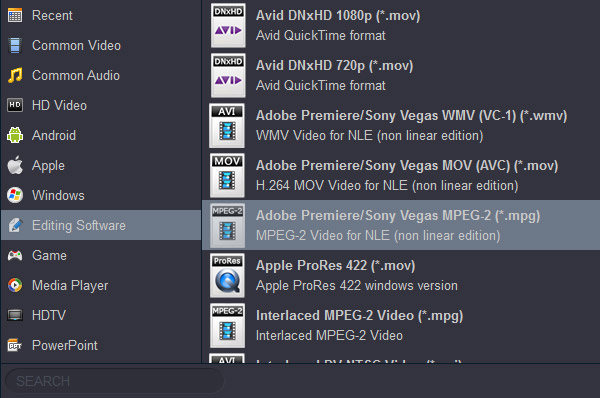
Kindly Note: The best codecs or formats for editing in Vegas Pro are MPEG-2 if you’re on a Mac or Apple ProRes on a Windows-based PC. MPEG-2 is a interframe compressed codec, which creates small files but are pretty computer intensive to decompress during editing. ProRes and DNxHD are are intraframe compressed codecs which are a lot bigger, but playback and decompress a lot smoother.
Tips: You can cut, crop, merge, rotate, etc. to make some easy video edits in a linear manner with Acrok Video Converter Ultimate. You can also click “Settings” button to adjust the codec, resolution, frame rate, bitrate, etc.
Step 3. Start the conversion
Hit Convert and it will begin fast video decoding, conversion and processing your MP4 video at one go.
After the conversion is complete, get the resulted files via clicking the Open button and then you can import the result files to Vegas Pro 23 or lower version without any trouble.
Final Words:
The major cause that Vegas Pro fails to import MP4 files is that some required codec is missing and the file format is not supported. Therefore, transocding MP4 file using Acrok Video Converter Ultimate is the the most effective yet easiest solution recommended by us.
Besides converting videos, Acrok Video Converter Ultimate is also able to perform some video editing tasks, including cutting, trimming, merging, adding special effects, and more. The operation is really beginner-friendly.

Comments are closed