
This article explains what Apple ProRes is, why you should use it, and recommends the best ProRes converter for Mac to encode/decode ProRes video to MP4, as well as convert between ProRes 422, ProRes 4444, and common formats like H.264, HEVC, MKV, AVI, etc., all on macOS (including Sequoia, Sonoma, Ventura, Monterey, and Big Sur).
What is Apple ProRes?
Developed and released by Apple Inc. in 2007, ProRes is a professional intermediate codec that compresses video using the I‑frame (intra‑frame) approach. Unlike H.264 (which uses long‑GOP compression that references multiple frames), ProRes compresses each video frame individually. This results in significantly larger file sizes compared to MP4 or M4V, but it offers tremendous advantages for video editing and post‑production.
Apple ProRes includes several variants, each optimized for different workflows:
- Apple ProRes 4444 XQ – Highest quality, supports alpha channel, extremely high bitrate.
- Apple ProRes 4444 – Near‑lossless quality with alpha channel support.
- Apple ProRes 422 HQ – High quality for professional editing.
- Apple ProRes 422 – Standard high‑quality codec.
- Apple ProRes 422 LT – Lower bitrate for smaller files, good for offline editing.
- Apple ProRes 422 Proxy – Very low bitrate for proxy editing workflows.
Why should you use Apple ProRes?
ProRes is an I‑frame codec, meaning each frame is compressed independently. This drastically increases file size, but it makes life much easier for your computer’s GPU and CPU during playback and editing. Because every frame is self‑contained, your editing software doesn’t have to decode long chains of dependent frames when you scrub, trim, or apply effects. The result is smooth, real‑time editing even with 4K or 8K footage.
Another major advantage: ProRes is a 10‑bit codec (and up to 12‑bit in ProRes 4444). That gives you far more latitude for color grading than 8‑bit formats like H.264. You can push shadows and highlights, correct white balance, and apply LUTs without introducing banding or posterization.
Most modern NLEs (non‑linear editors) such as DaVinci Resolve, Avid Media Composer, Adobe Premiere Pro, and Final Cut Pro handle ProRes natively. However, when you receive footage in highly compressed Long‑GOP formats (like H.264 from a DSLR or smartphone), editing can become sluggish unless you have a very powerful computer. Transcoding that footage to ProRes using a dedicated converter makes editing smoother, more responsive, and less resource‑intensive.
Best ProRes Converter for Mac
Even though many post‑production applications include built‑in export features for ProRes, those tools can be slow, confusing, or limited. Acrok Video Converter Ultimate for Mac bridges this gap by offering a clean, intuitive interface with pre‑configured presets. It supports both encoding to ProRes (converting MP4, MOV, MKV, AVI, HEVC, etc., into ProRes) and decoding from ProRes (converting ProRes files to MP4, H.264, H.265, or other formats for playback). Best of all, Acrok provides a free trial, allowing you to encode/decode ProRes to MP4 on Mac without any upfront cost for basic tasks.
Key Features of Acrok Video Converter Ultimate for Mac
- Full ProRes support – Works with all ProRes variants: ProRes 4444 XQ, ProRes 4444, ProRes 422 HQ, ProRes 422, ProRes 422 LT, and ProRes 422 Proxy.
- Bidirectional conversion – Encode any video to ProRes for editing, or decode ProRes to MP4, H.264, H.265, MOV, MKV, AVI, WMV, M2TS, AVCHD, etc.
- High‑speed processing – Up to 30X faster than conventional converters thanks to GPU hardware acceleration (Intel QSV, NVIDIA NVENC, AMD VCE, and Apple M‑series chip support).
- Built‑in video editor – Trim, crop, merge, rotate, add subtitles, and adjust parameters before conversion.
- Batch conversion – Process multiple ProRes files simultaneously.
- macOS compatibility – Works flawlessly on Mac Sequoia, Sonoma, Ventura, Monterey, Big Sur, Catalina, and earlier.
How to encode/decode Apple ProRes 422/4444 to MP4 on Mac
The following steps work for both encoding (converting to ProRes) and decoding (converting from ProRes to MP4). We’ll focus first on decoding ProRes to MP4 – the most common need for Mac users who want to play ProRes files on standard media players or share them online.
Part 1: Decode ProRes to MP4 (for universal playback)
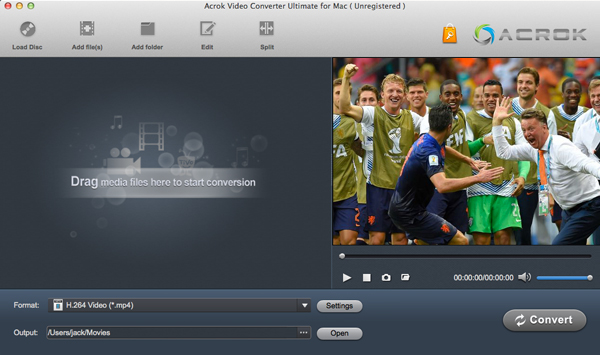
Step 1: Download and install Acrok Video Converter Ultimate
Visit the official Acrok website, download the Mac version, and install it. Launch the program.
Step 2: Add your ProRes video files
Click the “Add Video” button at the top left corner, or simply drag and drop your ProRes .mov files into the main window. Acrok supports batch conversion, so you can add several files at once.
Step 3: Select MP4 as the output format
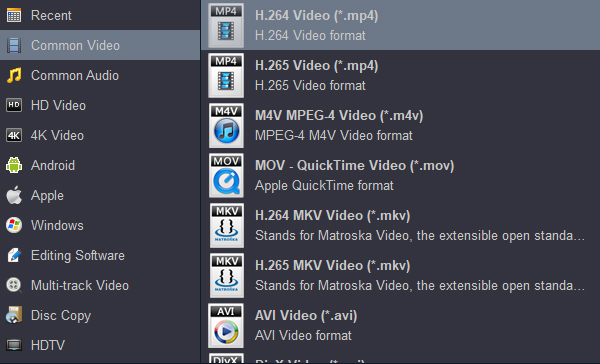
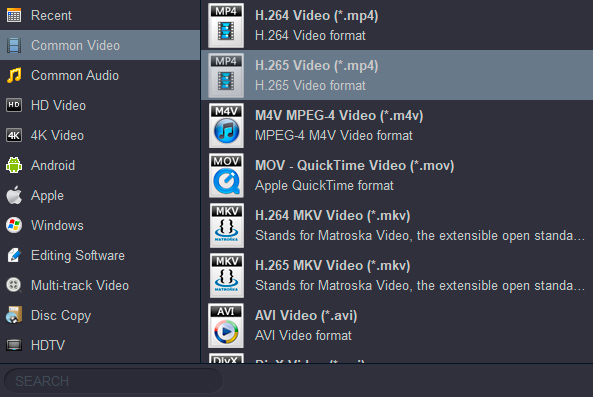
Click the “Format” bar (or “Target Format”) at the bottom. In the profile list, navigate to General Profiles > MP4 Video. You can choose between:
- H.264 MP4 – Higher compatibility, works on every device.
- H.265 MP4 – Better compression, smaller file sizes (ideal for 4K).
If you want a device-specific output (e.g., for iPhone, iPad, Apple TV, or Android), scroll to the Apple Device or Android Device category and pick your exact model.
Step 4: (Optional) Adjust video settings
Click the “Settings” gear icon next to the profile. Here you can modify:
- Resolution (keep “Same as source” for original quality)
- Frame rate (match source to avoid judder)
- Bitrate or Constant Quality (CRF 18–22 for H.265, 20–25 Mbps for H.264 4K)
- Audio codec (AAC 256 kbps recommended)
Click OK to save.
Step 5: Start conversion
Click “Browse” to choose an output folder, then click the “Convert” button. Acrok will begin transcoding your ProRes video to MP4. The progress bar shows remaining time. Thanks to hardware acceleration, a 10‑minute 4K ProRes 422 clip typically converts in 3‑5 minutes on a modern Mac.
Step 6: Enjoy MP4 playback anywhere
Once finished, click “Open Output Folder” to locate your new MP4 files. You can now play them in QuickTime Player, VLC, or any media player, share them on social media, upload to YouTube, or transfer to an Android phone or smart TV.
Part 2: Encode any video to Apple ProRes on Mac (for editing in Final Cut Pro)
Sometimes you need to convert regular MP4 or H.264 footage into ProRes for smoother editing. Here’s how:
Step 1: Add your source video (e.g., a 4K MP4 from a camera or smartphone).
Step 2: Click the “Format” bar and move the mouse cursor to “Editing Software” category. You will find optimized ProRes presets:
- Apple ProRes 4444 (*.mov) – For videos requiring alpha channel or maximum color depth.
- Apple ProRes 422 HQ (*.mov) – For near‑lossless editing of 4K content.
- Apple ProRes 422 (*.mov) – Standard quality, excellent for most projects.
- Apple ProRes 422 LT (*.mov) – Smaller files, good for offline editing.
- Apple ProRes 422 Proxy (*.mov) – Very low bitrate for proxy workflows.
Step 3: Optionally, click “Settings” to adjust frame rate, resolution, or enable 10‑bit encoding (ProRes is always 10‑bit).
Step 4: Click “Convert” . The resulting ProRes .mov file will be ready to import into Final Cut Pro, DaVinci Resolve, Adobe Premiere, or Avid Media Composer.
Note: ProRes files are large – expect 10‑20 times the size of the original MP4. This is normal. Hard drives are affordable, and the editing performance gain is well worth the storage cost.
Frequently Asked Questions
Q: Can I use Acrok Video Converter Ultimate for free on Mac?
Yes, Acrok offers a free trial version that allows you to convert the first few minutes of any video. This is perfect for testing quality and workflow. For unlimited conversions, a low‑cost license is available.
Q: Is there any online ProRes converter that runs in a browser?
Some online tools (like Descript or EditingTools.io) claim to convert ProRes, but they have severe limitations: maximum file size (often 1 GB), slow upload/download, privacy risks, and only support ProRes Proxy or LT. For serious work, a desktop converter like Acrok is far more reliable and secure.
Q: What is the difference between ProRes and regular video (MP4/H.264)?
ProRes uses I‑frame compression, resulting in much larger files but much easier processing for editing software. Regular MP4/H.264 uses Long‑GOP compression, which saves space but makes editing slow and resource‑heavy, especially for 4K content.
Q: What’s so good about ProRes?
ProRes trades storage space for quality and editing performance. It doesn’t compress video as aggressively as H.264, preserving fine details, smooth gradients, and giving you 10‑bit color depth. For professional post‑production, these advantages far outweigh the larger file sizes.
Q: Can I convert ProRes to MP4 without losing quality?
Every conversion from ProRes (a lightly compressed intermediate codec) to MP4 (a highly compressed delivery codec) involves some quality loss. However, by using a high bitrate (e.g., 25–35 Mbps for 4K H.264) or constant quality mode (CRF 18), Acrok Video Converter Ultimate makes the loss visually imperceptible for most viewers.
Q: Does Acrok support the new Apple M1/M2/M3/M4 chips?
Absolutely. Acrok Video Converter Ultimate is optimized for Apple Silicon, offering native performance and even faster hardware‑accelerated encoding on M‑series Macs.
Final Words
Apple ProRes remains a proprietary codec. While you cannot download an official ProRes codec for Windows, macOS includes native ProRes support. However, to convert ProRes video to MP4 (for sharing, playback on non‑Apple devices, or uploading to social media), or to convert ordinary videos into ProRes for smooth editing, you need a reliable third‑party tool.
Acrok Video Converter Ultimate for Mac stands out as one of the easiest, fastest, and most affordable solutions for Mac users. It handles both encoding and decoding of all ProRes variants, offers batch processing, hardware acceleration, and a clean interface. Whether you’re a professional editor or a casual creator, Acrok lets you free encode/decode ProRes video to MP4 on Mac with just a few clicks.
Download the free trial today and experience the difference. Your Mac will thank you.
Tags: best prores to h.264 mp4 converter, convert prores video to mp4, apple prores to h.265 converter, how to convert 4k prores to mp4, encode prores video to mp4 on mac

Comments are closed