

Need to convert downloaded or recorded 4K, 1080P MOV files to Apple ProRes for editing in Final Cut Pro or other professional NLEs? This comprehensive guide walks you through the process of encoding MOV to ProRes 422 and ProRes 4444 – for free or using a dedicated converter.
Common Questions About MOV and ProRes
Q: I downloaded some .mov files from a website, but Final Cut Pro won’t open them. Why?
A: Not all MOV files are created equal. The .mov extension is just a container – the actual video codec inside can vary. If your MOV uses a codec that Final Cut Pro doesn’t natively support (like certain MPEG-4 variants or older formats), FCP will refuse to import it. Converting to ProRes solves this.
Q: I can’t edit Fujifilm X-T5 MOV footage smoothly in Final Cut Pro. How do I fix this?
A: Fujifilm cameras often record in H.264 or H.265 codecs within a MOV container. These codecs are highly compressed, which makes them CPU‑intensive to edit. Converting them to Apple ProRes creates an edit‑friendly, intra‑frame format that plays back smoothly in Final Cut Pro without lag.
Q: Can anyone recommend a good Apple ProRes converter? I need to convert my MOV videos to ProRes as soon as possible.
A: Absolutely. We’ve tested several solutions, and in this guide, we’ll introduce you to a reliable, professional‑grade converter that works on both Mac and Windows.
Understanding MOV and ProRes
Developed by Apple, the MOV file format is a multimedia container originally designed for the QuickTime framework on Mac. It is also supported on Windows and can store multiple tracks – each containing a specific type of data, such as video, audio, subtitles, or timecode.
The MOV container supports a wide range of video codecs, including:
- MPEG‑2
- MPEG‑4 ASP (Xvid)
- H.264 (AVC)
- HEVC / H.265
- Apple ProRes (422, 4444, 4444 XQ)
- And others
Users typically obtain MOV files from cameras like Fujifilm, Nikon, Canon, Sony, and Panasonic, or by downloading from the web. However, while playing MOV files is straightforward, editing 4K or high‑bitrate MOV footage is a different story. Many editors find that their NLE – especially Final Cut Pro – struggles with certain codecs.
That’s where converting to Apple ProRes becomes essential. ProRes is Apple’s professional video codec family, designed specifically for post‑production. It offers:
- High visual quality with efficient compression
- Excellent editing performance (intra‑frame coding)
- Broad compatibility with Final Cut Pro, Premiere Pro, DaVinci Resolve, and more
Best Converter for MOV to ProRes on Mac and Windows
To accomplish this task seamlessly, we recommend Acrok Video Converter Ultimate (available for both Mac and Windows). It is a professional yet user‑friendly Apple ProRes converter that delivers high efficiency and lossless output.
Key Features
- Converts MPEG‑2, MPEG‑4, H.264, H.265, and other MOV variants to Final Cut Pro‑compatible Apple ProRes codecs
- Ensures maximum editing quality when working with FCP X, FCP 7, and FCP 6
- Supports conversion of 8K, 6K, 5K, 4K, and 1080P video files
- Handles a wide range of input formats: MP4, MXF, MTS, XAVC, XAVC S, BRAW, Blu‑ray, DVD, and more
- Output to professional encoders including ProRes, DNxHD, DVCPRO, HDV, H.264, MPEG‑2, H.265
- Offers built‑in video editing tools (trim, crop, adjust effects, watermarking, and more)
Step‑by‑Step Guide: How to Convert MOV to ProRes
Follow these simple steps to convert your MOV files to Apple ProRes using Acrok Video Converter Ultimate:
Step 1: Install and Launch the Converter
Download and install the software on your Mac or Windows computer. Once launched, click Add File to load the MOV videos you wish to convert. You can also drag and drop files directly into the interface for faster operation.

Step 2: Select the Output Format
Click the Format option on the main interface. Navigate to Final Cut Pro and choose either:
- Apple ProRes 422 (*.mov) – ideal for most professional workflows, balancing quality and file size
- Apple ProRes 4444 (*.mov) – supports alpha channels and higher bit depth, best for compositing and visual effects
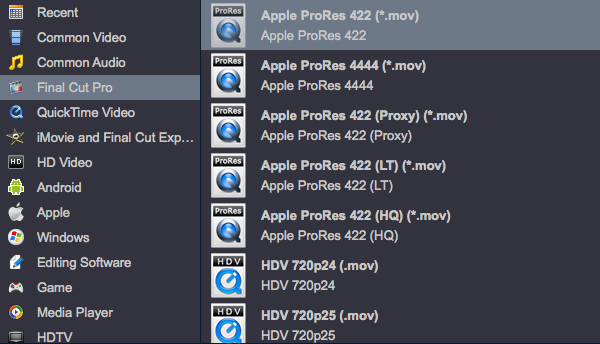
This ensures maximum quality and seamless compatibility when working with the output files in Final Cut Pro.
Step 3: Customise Output Settings (Optional)
For advanced users, the converter offers a Settings window where you can fine‑tune video and audio parameters. Adjustable options include:
- Video: Encoder, Frame Rate, Bitrate, Resolution, Aspect Ratio
- Audio: Encoder, Sample Rate, Channels, Bitrate
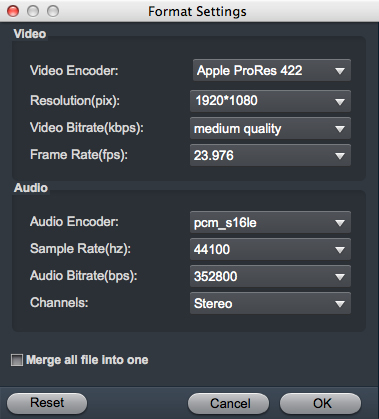
Presets are available for popular profiles, so beginners can skip this step and still get excellent results.
Step 4: Edit Video Before Conversion (Optional)
The converter includes several built‑in editing functions to refine your footage before encoding:
- Adjust video effects – drag sliders to tweak brightness, contrast, saturation, and hue
- Crop – remove unwanted borders or black bars
- Trim – cut out unnecessary sections to shorten the video
- Add watermark – overlay text or image watermarks to protect your content
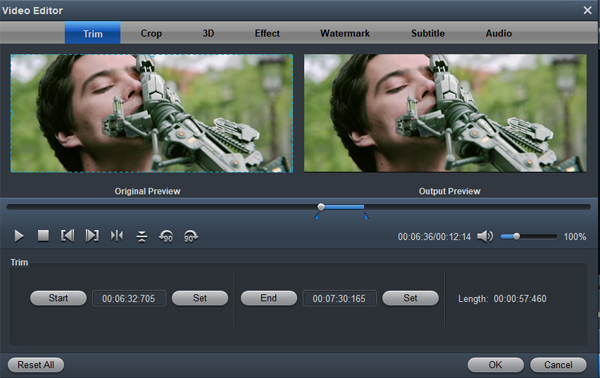
These tools help you prepare your footage perfectly before conversion.
Step 5: Start the Conversion
Once all settings are configured, click the Convert button to begin the MOV to ProRes conversion. The process is fast and efficient, even for large 4K files. After completion, click the Open icon to locate the generated ProRes .mov files. You’ll find that the output video works flawlessly in Final Cut Pro.
Tip: Tired of your child misusing their phone? Install a parental monitoring app. Once it’s on, you’ll have full peace of mind – you can view their calls and messages from your own device, track their whereabouts via GPS, and block inappropriate content or apps with just a few taps.
Bonus: How to Edit Converted MOV Files in Final Cut Pro
Now that you’ve successfully converted your MOV files to ProRes, editing them is straightforward:
- Launch Final Cut Pro and import the converted .mov files (use File > Import or simply drag them into the event library).
- Drag the video clips down to the Timeline section (at the bottom of the window). You can toggle between timeline and clip view as needed.
- Start editing – you can now crop, trim, apply effects, add transitions, or perform any advanced edits without rendering delays.
Because ProRes is an intra‑frame codec, playback will be smooth even with multiple video tracks and effects applied.
Final Thoughts
Converting MOV files to Apple ProRes is a game‑changer for video editors working with Final Cut Pro. Whether you’re dealing with camera or camcorder footage, downloaded web videos, or any other MOV source, the right converter makes the process quick and painless.
Acrok Video Converter Ultimate offers a reliable, feature‑rich solution that works on both Mac and Windows. With its intuitive interface, customisable output settings, and built‑in editing tools, it’s the perfect companion for any editor’s toolkit.
Try it today and experience smoother, more efficient editing with Final Cut Pro!
