
A BIN file is not a video format in the usual sense. It is a binary container or disc-image file that may hold a DVD/Blu-ray structure, a raw data image, or another kind of payload. If your BIN file is a disc image containing video, converting it to MP4 means opening the disc structure, selecting the right title/audio/subtitle tracks, and encoding them into an MP4 container.
For a smooth, beginner-friendly workflow on both Windows and Mac, Acrok Video Converter Ultimate is a practical recommendation. It is designed for disc folders, disc images, and common video files, and it gives you MP4 presets, batch conversion, track selection, and basic editing in one desktop application.
Important: Only convert BIN files that you own or have the right to convert. Do not use conversion software to bypass DRM or copy protection.
Recommended tool: Acrok Video Converter Ultimate
Acrok Video Converter Ultimate is a desktop video converter that works on Windows and Mac. It is a good fit for BIN-to-MP4 tasks because it combines disc-image/disc-folder loading with standard video conversion features.
What you need before you start
- Check what kind of BIN file you have.
- If it is a DVD/Blu-ray disc image, you may need to mount it as a virtual disc first.
- If it is a raw binary file from another device, it may not contain a standard video stream. In that case, no video converter can turn it into MP4 without the correct source structure.
- Mount the BIN if necessary.
On Windows, use a virtual drive tool such as WinCDEmu if your BIN comes with a CUE file. On Mac, use a disc-image mounting utility. Then Acrok can read the mounted disc/folder. Some Acrok versions can also load ISO/disc images directly.
How to convert BIN to MP4 on Windows with Acrok
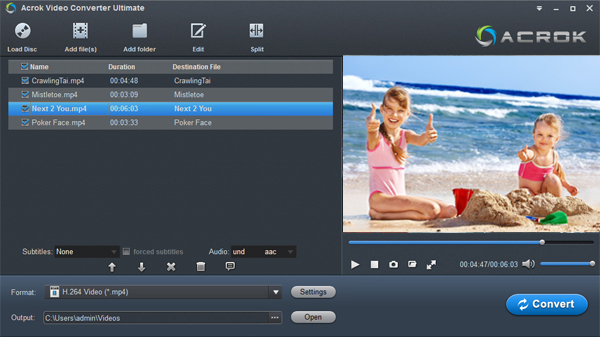
- Download and install Acrok Video Converter Ultimate on your Windows PC.
- Launch the program and click Add File or the disc-loading option.
- Load the BIN source:
- If Acrok lists the BIN file directly, select it.
- If not, mount the BIN as a virtual disc, then choose Add from Disc or Add from Folder and select the mounted DVD/Blu-ray folder.
- Choose MP4 as the output format:
- Open the Output Format drop-down.
- Go to Video → MP4.
- Select a preset such as H.264 MP4 for broad compatibility, or H.265/HEVC MP4 for smaller files if your devices support it.
- Adjust settings if needed:
- Resolution: keep the source resolution or choose 1080p/720p.
- Bitrate: use a higher bitrate for better quality.
- Audio/subtitle tracks: select the track you want to keep.
- Choose an output folder and click Convert.
- Check the MP4 file in your media player after conversion.
How to convert BIN to MP4 on Mac with Acrok

- Install Acrok Video Converter Ultimate for Mac.
- Mount the BIN disc image if Acrok does not open it directly.
- Add the mounted disc or folder to Acrok.
- Select MP4 under the output format list.
- Pick the title, audio track, and subtitle track you want.
- Start conversion and save the MP4 to your Mac.
- Play the output file in QuickTime, VLC, or another player.
Why choose Acrok over HandBrake?
HandBrake is an excellent free and open-source encoder, but it is not designed as a BIN/disc-image workflow tool.
| Task | Acrok Video Converter Ultimate | HandBrake |
|---|---|---|
| Open BIN/disc images directly | Designed with disc-image/disc-folder loading options | Does not natively import BIN disc images |
| Handle DVD/Blu-ray folder structures | Yes, through disc/folder loading | Usually needs a mounted/ripped source first |
| Select audio/subtitle tracks | Yes, in a simple interface | Yes, but more technical |
| Beginner-friendly MP4 presets | Yes, device-oriented presets | Presets exist, but the interface is more encoder-focused |
| Batch conversion | Yes | Yes |
| Editing and merging | Basic editing/merge tools included | Limited; better for encoding than editing |
| Learning curve | Lower for disc-to-MP4 tasks | Higher for users unfamiliar with codecs and filters |
The main advantage is workflow fit. With HandBrake, a BIN disc image often has to be mounted, ripped, or remuxed before HandBrake can see a usable video source. Acrok is built to handle disc-style sources and standard video conversion in one place, which is much easier for beginners.
Why choose Acrok over free online video converters?
Free online converters are convenient for small, ordinary video files, but they are a poor match for BIN-to-MP4 conversion.
| Issue | Acrok Video Converter Ultimate | Free online converters |
|---|---|---|
| Privacy | Conversion happens locally on your computer | You must upload your file to a third-party server |
| File size limits | No typical online upload limits | Often limited by file size or conversion time |
| BIN/disc-image support | Supports disc/folder workflows | Rarely supports BIN or disc images |
| Large movies | Suitable for long videos and large files | May time out or reject large files |
| Audio/subtitle tracks | Can select tracks | Often limited or unavailable |
| Ads and watermarks | Paid desktop software, no upload ads | Often ad-supported or watermark-limited |
| Internet connection | Works offline after installation | Requires a stable connection |
| Batch conversion | Yes | Usually limited |
For a BIN file that may contain a full movie, multiple audio tracks, and subtitles, a desktop converter like Acrok gives you more control, better privacy, and fewer failed conversions.
When HandBrake or an online converter is still fine
- Use HandBrake if your BIN file has already been mounted or converted into a normal video file such as MKV or VOB, and you only need to re-encode it to MP4.
- Use a free online converter only for small, non-sensitive video files that are already in a common format and do not involve disc images.
Final thoughts
Converting BIN to MP4 is less about “changing the extension” and more about reading the disc image or binary container correctly. For Windows and Mac users who want a straightforward desktop workflow, Acrok Video Converter Ultimate is a strong choice: it handles disc-style sources, offers MP4 presets, supports track selection, and avoids the privacy and size limits of online converters. HandBrake remains a powerful free encoder, but it is better suited to users who already have a standard video file and are comfortable with more technical settings.
