

In this guide, we’ll walk you through everything you need to know about downscaling high-resolution footage. You’ll learn why and how to downscale 4K to 1080p using three practical methods – offline software, free tools, and online converters. Whether you want to convert MKV to MP4 for better compatibility or need to convert 4K MKV to 1080p MP4 for smooth playback, we’ve got you covered.
Why Convert 4K MKV to 1080p MP4?
4K technology is everywhere now. Many cameras, camcorders, and even smartphones – shoot stunning 4K video. However, 4K MKV files often cause problems like stuttering, frame drops, laggy playback, or even black screens. These issues arise due to limited display devices, decoding capabilities, bandwidth constraints, and storage space.
Reasons to downscale 4K to 1080p:
- Not everyone owns a 4K display – many devices still cap at 1080p.
- 4K consumes huge disk space – one minute of 4K@60fps can take over 500MB.
- Editing 4K is demanding – you need a powerful GPU/CPU and lots of RAM.
Thus, converting 4K MKV to 1080p MP4 gives you smaller file sizes, smoother editing, and easier sharing – without sacrificing too much visible quality.
Below are 3 simple ways to convert 4K MKV to 1080p MP4 using offline, free, and online solutions.
Method 1. Offline: Convert 4K MKV to 1080p MP4 with Acrok Video Converter Ultimate (Offline)
If you need a reliable 4K To 1080p Converter that works without an internet connection, Acrok Video Converter Ultimate is a top choice. It handles high-bitrate, high-FPS 4K MKV files from any source. With hardware acceleration and an intelligent scaling algorithm, you can convert 4K MKV to 1080p MP4 offline at up to 6x faster speed while preserving quality.

How to convert 4K MKV to 1080p H.264 MP4 or H.265 MP4 using Acrok:
Step 1. Download, install, and launch Acrok. Click “Add File(s)” to load your 4K MKV video. Batch conversion is supported.
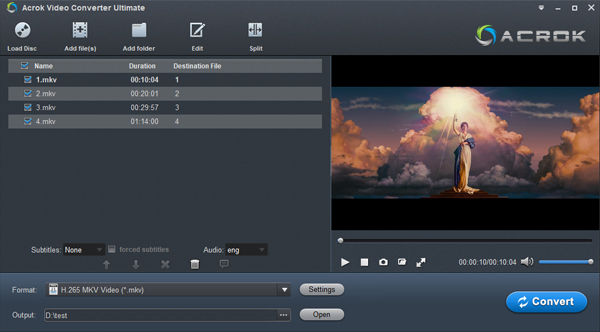
Step 2. Click the “Format” bar. Under “HD Video”, select MP4 and choose either H.264 or H.265 codec.
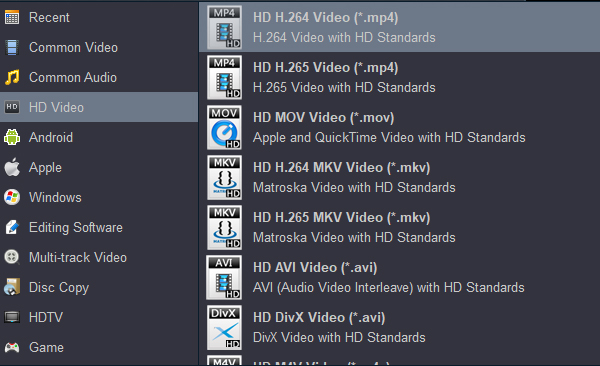
- Use H.264 for maximum compatibility.
- Use H.265 for smaller file sizes at the same quality.
Tip: No matter which encoded MP4 format you choose, you can directly get a 1080p video without any tedious settings.
Step 4. Click “Convert” to start. Once done, you’ll have a beautiful 1080p MP4 file. Finally, just click the Open button, and you will see the exported video.
✅ Offline, fast, high-quality – perfect for batch conversions.
Acrok Video Converter Ultimate is not just a video converter; it can also rip commercial Blu-ray and DVD discs. At the same time, it is also a free video player and a free audio converter. This means you can freely play videos in any format on your computer, including Blu-ray movies and DVD movies. Additionally, you can convert CDs and other audio formats to common audio formats such as MP3, M4A, etc. for free, so you can play them freely on various devices.
Method 2. Free: Downscale 4K to 1080p with HandBrake (Free & Offline)
HandBrake is the most popular open-source tool to convert 4K MKV to 1080p MP4 for free. It works offline, supports all major platforms, and gives you fine control over codecs, filters, and dimensions. With HandBrake, you can convert 4K MKV to 1080P H.264 MP4 or H.265 MP4 at no cost.
How to convert 4K MKV to 1080p MP4 for free using HandBrake:
Step 1. Download HandBrake from its official site and install it.
Step 2. Launch HandBrake. If prompted, install the required .NET framework.
Step 3. Click “File” and import your 4K MKV video.
Step 4. Under the “Summary” tab, choose MP4 as output format.
Go to the “Dimensions” tab – the resolution will automatically be set to 1920×1080 if you select a preset like “Fast 1080p30”.
Step 5. Under the “Video” tab, select H.264 or H.265 as the video encoder.
Step 6. Choose an output destination and click “Start Encode”.
✅ Completely free, open-source, and very powerful – best for users who want full control.
? Pros
- Completely free, no ads, clean and practical – As GPL-licensed open-source software, HandBrake is completely free with no ads or spyware – a clean, practical tool.
- Cross-platform support, comprehensive coverage – It runs well on Windows, macOS, and Linux, providing a consistent experience regardless of your computer.
- Highly flexible and customizable – While simple to operate, it offers extremely rich parameter settings. You can fine-tune bitrate, frame rate, encoders (H.264/H.265/AV1), and support advanced options like two-pass encoding.
- Beginner-friendly presets, low barrier to entry – Built-in presets optimized for specific devices (e.g., iPhone, Apple TV) and platforms mean beginners can get good results with almost no manual settings.
- Broad format support – It handles nearly all modern video formats, including MP4, MKV, AVI, and MOV. It supports numerous codecs like H.264, H.265 (HEVC), MPEG-2, as well as Blu-ray and unencrypted DVD discs.
- Excellent batch conversion and processing capabilities – Supports batch adding of files, greatly improving efficiency when processing large volumes of video. While it doesn’t include professional editing features, it has robust built-in filters like cropping, scaling, denoising, deinterlacing, and subtitle addition.
- Efficient video compression performance – Excellent at reducing file sizes, especially when encoding to the efficient H.265 format. Its compression quality and efficiency rival paid commercial software.
- Continuous updates, active community – As an active open-source project, it receives regular updates and new features. For example, it has long supported converting 4K MKV to 1080p H.264/H.265 MP4.
? Cons
- Steep learning curve – Beginners may feel overwhelmed when first opening HandBrake. The interface is a bit complex and requires some time to learn and adapt.
- Very limited output formats – This is a major limitation: it can only output three video formats: MP4, MKV, and WebM.
- Lacks basic video editing features – It is not a video editor and cannot perform multi-track editing or add complex effects. For video editing, pair it with professional free editors like DaVinci Resolve or Shotcut.
- Cannot handle encrypted discs – HandBrake can rip DVDs and Blu-rays, but it cannot bypass any form of copyright protection. This means it cannot process most commercial movie discs you purchase.
- Hardware acceleration quality and limitations – While it supports hardware acceleration like Intel QSV and NVIDIA NVENC (useful for a 4K To 1080p Converter), it typically sacrifices compression efficiency – resulting in larger file sizes and slightly lower quality at the same bitrate compared to pure CPU encoding. Certain filters are processed only by the CPU, which can significantly slow down encoding when enabled.
- Lossy compression and performance issues – It is lossy by default, permanently discarding original data to reduce file size. Processing large videos is very CPU-intensive and can slow down your computer. Although hardware acceleration is supported, some filters lack GPU acceleration, potentially underutilizing high-end GPUs.
- Specific bugs and limitations – User reports indicate occasional issues, such as subtitle handling errors with certain formats, crashes with specific encoders, or errors when converting non-standard frame rates (e.g., 25/50fps).
Method 3. Online: Convert 4K MKV to 1080p MP4 via HDconvert (Online)
If you don’t want to install any software, an online tool can convert 4K MKV to 1080p MP4 online. HDconvert is a solid option for quick conversions without downloading programs. Keep in mind that free online converters often have file size limits, rely on your internet speed, and may add watermarks or restrict output to 720p unless you upgrade.
How to convert 4K MKV to 1080p MP4 online with HDconvert:
Step 1. Go to the HDconvert official website.
Step 2. Click “Convert HD Video” then “ADD NEW FILES” to upload your 4K MKV file.
Step 3. Select MP4 as the output format.
Step 4. Under “Output Quality”, choose Full HD 1080p.
Step 5. Adjust advanced settings if needed, then click “NEXT” to start conversion. Once done, download your 1080p MP4.
⚠️ Note: The free tier may limit resolution to 720p or add a watermark. For true 1080p output without watermarks, a premium version is required.
✅ No installation, browser-based, convenient for small files.
? Pros
- No installation required & cross-platform – Being entirely web-based, HDconvert works on Windows, macOS, Linux, Chromebooks, and even mobile devices. There’s no need to download or install anything, making it extremely accessible.
- User-friendly interface – The platform offers a simple, intuitive interface that requires no video editing experience. Beginners can easily upload files and convert them to various formats without dealing with complex settings.
- Supports a wide range of formats and codecs – HDconvert handles popular video formats including MP4, MOV, MKV, WEBM, AVI, 3GP, FLV, and WMV. It also supports advanced codecs like H.264, HEVC (H.265), VP8, VP9, and AV1 for superior compression.
- Fast conversion speeds – The platform claims conversion speeds up to 900 frames per second, enabling quick processing even for large files.
- AI-powered tools beyond conversion – Unlike basic converters, HDconvert includes AI enhancement tools for upscaling, denoising, sharpening files to 4K Ultra HD resolution, AI colorization, AI generation, speech-to-text, and text-to-speech.
- Multiple formats – The platform claims to support a wide range of video formats, ensuring compatibility across various devices and platforms.
- Batch conversion capabilities – Users can process multiple files at once, improving efficiency when handling several videos.
- Supports downscaling 4K to 1080p – HDconvert can handle high-resolution videos, allowing users to downscale 4K to 1080p or convert 4K MKV to 1080p MP4 as needed.
- No login required for basic use – The platform allows users to start converting immediately without creating an account, reducing friction for quick tasks.
- Automatic file deletion – Uploaded files are automatically deleted after two hours, providing some level of privacy for sensitive content.
? Cons
- Misleading “no limits” claim – While HDconvert’s homepage prominently claims “no file size limits, no watermark, no usage credits”, this appears to be promotional language. Independent reviews consistently report that the free version does have file size limitations, typically capped around 1 GB, and that premium features are required to remove watermarks and size limits.
- Watermark on free version – All converted videos and images on the free plan include a watermark. Removing it requires upgrading to a premium subscription, with the most basic plan starting at $4.99.
- Limited output resolution on free plan – Free users reportedly cannot access Ultra HD 4K quality output; 1080p and higher resolutions may require a premium upgrade. This directly contradicts the website’s claim of delivering “up to 8K quality” for free users.
- Poor user reputation – HDconvert has a Trustpilot rating of only 1.9 out of 10 based on 15 reviews, indicating low customer satisfaction. Furthermore, the company has not reported any reviews in the past 12 months, suggesting a lack of engagement with user feedback.
- Mixed security signals – Security assessment platforms rate HDconvert’s trust score at 79/100, which is considered “caution recommended” territory rather than fully safe. While no major malware or phishing threats were detected, independent verification is advised before use.
- Inconsistent free tier claims – There is significant confusion between what the website advertises (“completely free with no limits”) and what third-party reviews report (1 GB file limits, watermarks, no 4K output on free plan). This discrepancy may frustrate users who expect truly unlimited free service.
- Internet dependency – As a purely online tool, HDconvert requires a stable, fast internet connection. Uploading large video files can be time-consuming, and conversion may fail if the connection drops.
- Privacy considerations – Uploading sensitive or personal videos to any online platform carries inherent privacy risks, even with automatic file deletion after two hours.
- Limited advanced settings – While fine-tuning options like video quality and audio bitrate are available, online tools generally offer fewer configuration options compared to desktop software like HandBrake.
- Potential for slow uploads – Processing large files may be hindered by network conditions, leading to slow upload times and potential conversion failures.
Comparison Table: Which Method Should You Choose?
| Feature | Acrok (Offline) | HandBrake (Free) | HDconvert (Online) |
|---|---|---|---|
| Price | Paid | Free | Freemium |
| Works offline | ✅ Yes | ✅ Yes | ❌ No |
| Convert 4K MKV to 1080p H.264/H.265 | ✅ Yes | ✅ Yes | ✅ Limited |
| Batch conversion | ✅ Yes | ✅ Yes | ❌ No |
| Quality retention | Excellent | Very good | Good (size limits) |
| Ease of use | Very easy | Moderate | Very easy |
FAQs About Converting 4K MKV to 1080p MP4
Q: Can you convert 4K MKV to 1080p MP4?
A: Yes, all three methods above let you downscale 4K to 1080p easily.
Q: Which codec should I choose – H.264 or H.265?
A: H.264 – better compatibility with older devices.
H.265 – smaller file size at same quality, but requires newer hardware for playback.
Q: How can I convert 4K MKV to 1080p MP4 offline without quality loss?
A: Acrok uses a motion-adaptive scaling algorithm that preserves perceptible quality. HandBrake also does an excellent job when using a high enough bitrate (e.g., 8-12 Mbps for 1080p).
Q: Is there a way to convert 4K MKV to 1080p MP4 for free offline?
A: Absolutely. HandBrake is completely free and open-source. It’s one of the best free tools to convert MKV to MP4 while downscaling.
Q: Can I convert 4K MKV to 1080p MP4 online without signing up?
Yes, HDconvert and similar online tools allow instant conversion without registration, but expect limitations on file size and output quality.
Final Thoughts
Whether you need to downscale 4K to 1080p for smoother playback, smaller storage, or faster editing, these three methods cover all scenarios. Use Acrok for offline batch conversion with premium quality, HandBrake for a free and powerful offline solution, or HDconvert for a quick online fix. Now you can confidently convert 4K MKV to 1080p MP4 – in H.264 or H.265 – anytime, anywhere, for free or offline as you prefer.
Tags: downscale 4k MP4 Video to 1080p, conver 4K mxf to 1080p, convert 4k mkv to 1080p mp4 mp4, convert 4k blu ray to 1080p, convert mkv to mov, lg webos tv video format, sony Blu-ray player usb video format
