
Convert AVI to Android best playback format (MP4 H.264). Compare Acrok Video Converter Ultimate (crack discs, fast, no limits), HandBrake (free), and online converters.
AVI (Audio Video Interleave) is one of the most widely used video formats across desktop platforms. However, if you want to play AVI files on Android devices using the native gallery player, you may run into compatibility issues. Many Android users prefer not to install third-party video players on their devices, which makes it necessary to convert AVI files into a format that Android natively supports. This can be done using conversion tools such as Acrok Video Converter Ultimate (a powerful desktop converter with DVD/Blu-ray decryption capabilities), HandBrake (a free and open-source transcoder), or free online converters (web-based tools that require no installation). Whichever approach you choose, processing AVI files beforehand ensures optimal playback on your Android phone, tablet, or Android TV. If you have been searching for ways to convert AVI to Android’s best playback format, read on to explore all three methods in detail.
Part 1. Does Android Natively Support AVI Files?
The native video player provided on Android devices does not support AVI playback. According to Android‘s official documentation, the platform natively supports MP4 and 3GP video files, especially those encoded with the H.264 format. So if you’re wondering whether Android can play AVI directly, the answer is no. You have two practical options: install a third-party media player that supports AVI, or use a conversion tool to transcode AVI into a format that Android can play natively. Many users prefer conversion because it allows them to keep all their videos organized in the system gallery and avoid installing additional apps. Therefore, to achieve the best playback experience on Android, converting AVI to MP4 (H.264 + AAC) is the recommended approach.
What Is the Best Playback Format for Android?
The combination of MP4 container + H.264 (AVC) video codec + AAC audio codec is the most widely supported format across all Android devices. Here’s why this combination is the gold standard for Android playback:
- Native Support: Android’s built-in media framework has hardware-accelerated decoding for H.264 video and AAC audio, ensuring smooth playback without relying on third-party apps.
- Smaller File Size: H.264 compression can reduce file sizes by 40% to 60% compared to original AVI files while preserving excellent visual quality.
- Universal Compatibility: This format works seamlessly not only on Android smartphones, tablets, and Android TV but also on iOS, Windows, macOS, smart TVs, and game consoles.
- Streaming Optimized: MP4 files can start playing immediately without downloading the entire file, making them ideal for online streaming and sharing.
For optimal results across all Android devices (phones, tablets, and Android TVs), the recommended encoding settings are:
| Parameter | Recommended Setting |
|---|---|
| Container | MP4 (.mp4) |
| Video Codec | H.264 (AVC) |
| Resolution | 1920×1080 (1080p) or 1280×720 (720p) |
| Frame Rate | 30 fps (constant) |
| Video Bitrate | 4-8 Mbps for 1080p; 2-4 Mbps for 720p |
| Audio Codec | AAC-LC |
| Audio Bitrate | 128-192 kbps (stereo) |
Part 2. How to Convert AVI to Android Best Playback Format with Acrok Video Converter Ultimate
Acrok Video Converter Ultimate is a premium all-in-one video conversion solution that goes far beyond standard format conversion. What truly sets Acrok apart from other tools is its ability to decrypt and rip encrypted DVD and Blu-ray discs—a feature that neither HandBrake nor free online converters can offer. In addition to handling encrypted commercial discs, Acrok delivers industry-leading conversion speed, supports unlimited file sizes, and imposes no duration restrictions.
Acrok Video Converter Ultimate – A Complete Video Toolbox
- Crack Encrypted DVD/Blu-ray Discs: Acrok can decrypt and convert the latest commercial DVD and Blu-ray discs protected by AACS, BD+, and Cinavia. It also supports Blu-ray ISO files, Blu-ray folders, DVD ISO/IFO files, and DVD folders.
- Exceptionally Fast Conversion Speed: Equipped with NVIDIA CUDA and AMD APP acceleration technology, Acrok delivers conversion speeds up to 10 times faster than traditional converters, making it the fastest option among the three methods discussed here.
- No File Size or Duration Limits: Unlike online converters that restrict upload sizes (often 100MB to 200MB), Acrok imposes no limits whatsoever. You can convert entire Blu-ray movies, full-length feature films, or 4K video collections without any restrictions.
- Convert 4K/Full HD Videos: Acrok supports 8K, 6K, 4K, and full HD video formats including MKV, AVI, WMV, MOV, MP4, FLV, AVCHD MTS, M2TS, TS, MXF, and more.
- 300+ Supported Formats: Convert between AVI, MP4, MOV, MKV, FLV, WMV, 3GP, and over 300 other audio/video formats.
- Optimized Android Presets: One-click optimized presets for Samsung Galaxy, Google Pixel, Xiaomi, Huawei, OnePlus, and other Android devices, as well as Android tablets and Android TV.
- Built-in Video Editing: Trim, crop, add watermarks, adjust brightness/contrast/saturation, remove or replace audio tracks, add subtitle files, and even convert 2D videos to 3D.
- Lossless Backup: Use the “Full Disc Copy” function to create bit-perfect backups of Blu-ray and DVD discs without any quality loss.
- Supported OS: Windows 11/10/8/7 and macOS (including the latest versions).
Step-by-Step Guide to Convert AVI to Android with Acrok Video Converter Ultimate
Step 1: Download and Launch the Software
Visit the official Acrok website, download the best AVI to Android Converter, and install it on your Windows PC or Mac. Once installed, launch the software.
Step 2: Add Your AVI Files
Click the “Add Files” button located at the top-left corner of the screen. Browse your computer and select all the AVI videos you wish to convert. Acrok supports batch conversion, so you can add multiple AVI files at once.
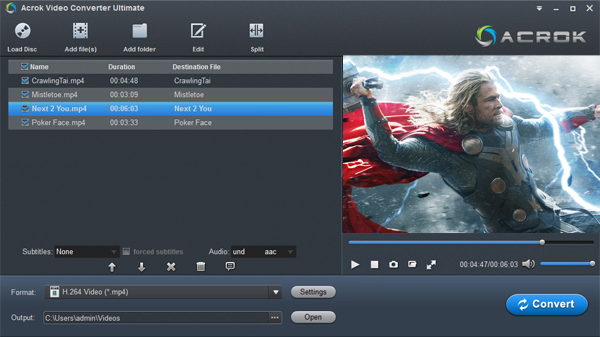
Special Feature – Convert DVD/Blu-ray Discs: If your video content comes from an encrypted DVD or Blu-ray disc, simply insert the disc into your optical drive and click the “Load Disc” button. Acrok will automatically decrypt the disc and load its contents, ready for conversion—a capability that HandBrake (which only works with unencrypted sources) and online converters cannot provide.
Step 3: Select the Output Format for Android
Once all videos are added, go to the “Format” section and select the Common Video category. From there, you have two options:
- Option A (Recommended): Choose the preset that matches your specific Android device, such as “Samsung Galaxy S23,” “Google Pixel 7,” or “Xiaomi 13.” Acrok will automatically apply the optimal encoding parameters for flawless playback.
- Option B (Manual): Go to the “Video” tab and manually select MP4 as the output container, H.264 as the video codec, and AAC as the audio codec. This combination works perfectly on all Android phones, tablets, and Android TV devices.
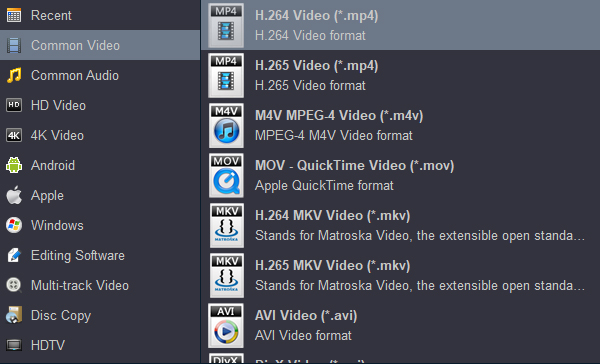
Step 4: Customize Output Settings (Optional)
For advanced users who want fine-grained control, click the “Settings” button next to the output format. Here you can adjust:
- Video resolution (e.g., 1920×1080 for 1080p, 1280×720 for 720p)
- Bitrate (e.g., 4000-8000 kbps for 1080p)
- Frame rate (e.g., 30 fps constant)
- Audio sample rate, channels, and bitrate
Step 5: Edit Your Video (Optional)
Acrok includes powerful video editing tools that let you personalize your videos before conversion. Click the “Edit” button next to any video file to:
- Trim unwanted sections by setting start and end times
- Crop the video frame and adjust aspect ratio
- Add text or image watermarks
- Adjust brightness, saturation, contrast, hue, and volume
- Add external subtitle files (SRT, ASS, SSA) to your video
Step 6: Choose Output Destination
At the bottom of the interface, click the “Output” button to select a destination folder on your computer where the converted MP4 files will be saved.
Step 7: Start Conversion
Once all settings are configured, click the “Convert” button at the bottom-right corner. Acrok’s GPU acceleration technology (NVIDIA CUDA / AMD APP) will process your AVI files at speeds up to 10× faster than standard converters.
Step 8: Transfer Converted Videos to Your Android Device
After conversion completes, locate the output MP4 files in your chosen destination folder. Transfer them to your Android device via USB cable, Google Drive/Dropbox, or SD card. You can now play these videos seamlessly using your Android device‘s native gallery app or any standard media player—no third-party software required.
Part 3. How to Convert AVI to Android Best Playback Format with HandBrake
HandBrake is a completely free, open-source video transcoder available for Windows, macOS, and Linux. It is developed by a global community of volunteers and has become one of the most trusted video conversion tools worldwide. While HandBrake is powerful and highly customizable, it lacks the ability to decrypt encrypted DVD or Blu-ray discs—it only works with unencrypted sources. Additionally, HandBrake does not offer the same level of GPU acceleration as Acrok, resulting in slower conversion speeds for large files.
Why HandBrake Is a Great Free Option
- Completely Free and Open-Source: No cost, no watermarks, no feature limitations.
- Cross-Platform: Works on Windows, macOS, and Linux.
- Batch Processing: Convert multiple AVI files at once.
- Built-In Device Presets: Includes an optimized preset specifically for Android devices.
- Supports Unencrypted DVD Sources: Can process unprotected DVD sources, but cannot decrypt commercial encrypted discs.
- Powerful Customization: Fine-tune video codec, quality (CRF), frame rate, resolution, and audio settings to your exact specifications.
- CRF Technology: Uses Constant Rate Factor (CRF) for intelligent quality control, preserving visual quality while reducing file size by 40-60% on average.
Step-by-Step Guide to Convert AVI to Android with HandBrake
Step 1: Download and Install HandBrake
Visit the official HandBrake website at handbrake.fr, download the version appropriate for your operating system, and install it following the on-screen instructions. After installation, launch HandBrake.
Step 2: Open Your Source AVI File
Click the “Open Source” button at the top-left corner of the main interface. Browse your computer and select the AVI file you want to convert. Alternatively, you can simply drag and drop the AVI file directly into the HandBrake window.
Step 3: Select the Output Format
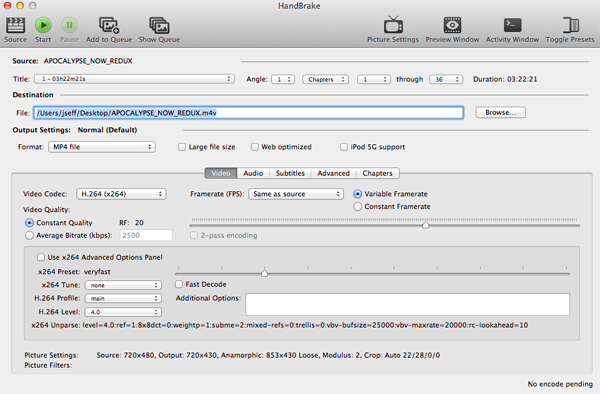
In the “Summary” tab, make sure the “Format” is set to MP4. This container format offers the best compatibility with all Android devices.
Step 4: Apply the Android Preset
Expand the “Presets” panel on the right side of the screen. Under the “Devices” category, you will find a preset labeled “Android” or “Android 1080p30.” Select this preset—HandBrake will automatically configure all the necessary settings (including resolution, codec, frame rate, and quality) to ensure the converted video plays smoothly on Android smartphones, tablets, and smart TVs.
Step 5: Optimize Video Settings (For Advanced Users)
If you want manual control, go to the “Video” tab and adjust the following:
- Video Encoder: Select H.264 (x264) —offers the best compatibility across all Android devices.
- Framerate (FPS): Set to 30 and check the “Constant Framerate” box for smoother playback.
- Quality (RF Slider): Adjust between 18 and 22. Lower RF values produce higher quality but larger file sizes; higher values reduce file size at the cost of some quality. The recommended range for Android is RF 20-22 for a good balance.
Step 6: Configure Audio Settings
Go to the “Audio” tab and ensure the following:
- Audio Encoder: Select AAC (avcodec) —the most widely supported audio codec on Android.
- Mixdown: Set to Stereo for universal compatibility.
- Bitrate: Choose 128 to 192 kbps for clear audio quality on mobile devices.
Step 7: Choose Output Destination
At the bottom of the main interface, click the “Browse” button to select a destination folder where your converted MP4 file will be saved.
Step 8: Start the Conversion
Click the green “Start Encode” button at the top of the window. HandBrake will begin processing your AVI file. The conversion time will depend on the length and resolution of your video as well as your computer’s hardware specifications. HandBrake does not leverage GPU acceleration as extensively as Acrok, so conversion speeds may be slower—especially for longer videos or full-length movies.
Step 9: Transfer to Android Device
Once the conversion is complete, locate the output MP4 file in your chosen destination folder and transfer it to your Android device via USB cable, cloud storage, or SD card. The video will now play perfectly using your device’s built-in media player.
Part 4. How to Convert AVI to Android Best Playback Format with Free Online Converters
If you only need to convert a small AVI file occasionally and do not wish to install any software on your computer, free online video converters offer a convenient browser-based solution. These tools work on any operating system—Windows, macOS, Linux, or even Android—as long as you have a stable internet connection and a web browser. However, online converters come with significant limitations regarding file size, conversion speed, privacy, and supported sources.
Advantages of Online Converters
- No Installation Required: Use them directly from your web browser.
- Cross-Platform: Works on any device with an internet connection.
- Simple Interface: Usually just three steps: upload → select format → download.
Significant Limitations of Online Converters
- File Size Restrictions: Most free online converters impose strict limits on upload file sizes. A typical limit is 100MB to 200MB per file. If your AVI video exceeds this limit, you will need to upgrade to a paid tier or find a different solution.
- No Duration Limits Explicitly Stated—But Size Limits Act as Duration Limits: Since most long videos (e.g., full-length movies) exceed file size caps, the duration limit is effectively enforced by file size restrictions.
- Slow Conversion Speeds: Conversion speed depends entirely on the server‘s processing power and your internet upload/download bandwidth. Compared to desktop converters like Acrok (which uses GPU hardware acceleration), online converters are significantly slower.
- Privacy and Security Risks: Uploading videos to third-party servers raises legitimate privacy concerns. While reputable services claim to delete files after 24 hours, you have no control over your data once it is uploaded. Never upload sensitive, private, or copyrighted content to online converters.
- Cannot Process Encrypted DVD/Blu-ray Discs: Online converters only accept individual video files as input. They cannot read from optical discs or process encrypted DVD/Blu-ray sources.
- Watermarks and Ads: Many free online converters add watermarks to output videos or bombard users with intrusive advertisements. Removing watermarks typically requires a paid subscription.
- Unstable Conversion Quality: Conversion success and output quality can be inconsistent, especially for older or less common AVI codecs.
Step-by-Step Guide to Using a Free Online Converter
Step 1: Choose an Online Converter Website
Open your web browser and navigate to a free online video conversion website such as GroupDocs, Online-Convert, Convertio, or CloudConvert.
Step 2: Upload Your AVI File
Click the upload area or drag and drop your AVI file into the designated region. Check the file size limit before uploading—many services cap uploads at 100MB or less. If your file exceeds the limit, you will need to compress it first or choose a different conversion method.
Step 3: Select Output Format
In the output format dropdown menu, select MP4. Some advanced converters allow you to choose the video codec; if available, select H.264 for optimal Android compatibility.
Step 4: Start Conversion
Click the “Convert” button. The tool will upload your AVI file to its server, perform the conversion, and prepare the output file. Depending on file size and server load, this process can take anywhere from seconds to several minutes.
Step 5: Download the Converted File
Once conversion is complete, a download link will appear. Click to download the converted MP4 file to your computer or directly to your Android device.
Step 6: Transfer to Android (if needed)
If you downloaded the file to your computer, transfer it to your Android device via USB cable, cloud storage, or SD card.
⚠️ Important Security Note: Exercise caution when using online converters. Only use reputable websites and never upload sensitive, private, or confidential videos. Even well-intentioned services cannot guarantee that your data won‘t be compromised or retained beyond their stated retention periods. For any video that contains personal information, business content, or copyrighted material, desktop software like Acrok or HandBrake is always the safer choice.
Part 5. Comparison: Three Methods for Converting AVI to Android
To help you choose the right method for your needs, here is a detailed comparison of all three approaches:
| Feature | Acrok Video Converter Ultimate | HandBrake | Free Online Converters |
|---|---|---|---|
| Price | Paid (with free trial available) | Free (open-source) | Free (with limitations) |
| Platform | Windows, macOS | Windows, macOS, Linux | Any OS with a web browser |
| Installation Required | Yes | Yes | No |
| File Size Limit | No limit — convert entire Blu-ray discs without restriction | No limit | Strict limit (100MB–200MB) — most full-length videos exceed this |
| Duration Limit | No duration limit — full-length movies, TV series, concerts all supported | No duration limit | Indirectly limited by file size cap — long videos typically exceed size limit |
| Conversion Speed | Extremely fast — GPU hardware acceleration (NVIDIA CUDA / AMD APP), up to 10× faster than traditional converters | Moderate — no GPU acceleration, slower for large files | Slow — depends on server load and internet bandwidth |
| Encrypted DVD/Blu-ray Support | ✓ Yes — decrypts AACS, BD+, Cinavia-protected commercial discs; supports DVD ISO, Blu-ray folders, etc. | ✗ No — only works with unencrypted DVD sources | ✗ No — cannot read optical discs at all |
| Batch Conversion | ✓ Yes | ✓ Yes | ✗ No (rarely supported) |
| Android Device Presets | ✓ Extensive brand-specific presets (Samsung, Google Pixel, Xiaomi, Huawei, OnePlus, etc.) | ✓ Basic Android preset available | ✗ No |
| Built-in Video Editing | ✓ Powerful (trim, crop, watermark, adjust brightness/saturation/contrast, add subtitles, 2D→3D conversion) | Basic (mainly trimming and quality adjustments) | Minimal or none |
| Offline Work | ✓ Fully offline — no internet required | ✓ Fully offline — no internet required | ✗ Requires internet connection for upload/download |
| Privacy & Security | High — all processing happens locally on your computer | High — all processing happens locally on your computer | Low — files uploaded to third-party servers; security cannot be guaranteed |
| Watermarks | No watermarks | No watermarks | Often adds watermarks in free tier |
| Lossless Disc Backup | ✓ Yes — “Full Disc Copy” for bit-perfect Blu-ray/DVD backups | ✗ No | ✗ No |
| Best For | Professional users, encrypted disc owners, batch conversion, large files, full-length movies, users who value speed and unlimited capabilities | Budget-conscious users, open-source enthusiasts, those willing to spend time fine-tuning settings | Occasional users with very small files (under 100MB) who don’t mind security risks |
Summary Recommendation
- Choose Acrok Video Converter Ultimate if: You own encrypted DVD or Blu-ray discs that you want to convert for Android playback; you need to convert large video files (e.g., full-length movies, TV series) without size or duration restrictions; you value extremely fast conversion speeds (up to 10× faster than traditional converters); or you need batch conversion, built-in editing, and lossless disc backup capabilities. Acrok is the only solution among the three that can handle encrypted commercial discs, and its GPU-accelerated conversion speed is unmatched.
- Choose HandBrake if: You are looking for a completely free, open-source solution, you only need to convert small to medium-sized AVI files that are already on your hard drive, you do not need to process encrypted DVD or Blu-ray discs, and you are comfortable spending time tweaking settings to achieve optimal results.
- Choose Free Online Converters if: You need to convert a very small AVI file (under 100MB) on rare occasions, you are unable or unwilling to install software on your computer, and you fully understand and accept the privacy risks associated with uploading files to third-party servers. Be aware that most online converters impose file size limits that make them unsuitable for full-length movies or high-resolution videos.
Part 6. Conclusion
Android devices do not natively support AVI playback, but converting AVI to MP4 (H.264 + AAC) provides a reliable solution that lets you enjoy your videos using the system’s built-in media player. Among the three methods discussed in this article, each serves a different use case:
Acrok Video Converter Ultimate stands out as the most powerful and versatile option. Its ability to decrypt encrypted DVD and Blu-ray discs makes it the only choice for users who need to convert commercial disc content. Combined with its unlimited file size and duration support, GPU-accelerated conversion speeds (up to 10× faster than traditional converters), extensive Android device presets, and built-in video editing capabilities, Acrok delivers a premium conversion experience that neither free tools nor online converters can match.
HandBrake remains an excellent free alternative for users with budget constraints who are converting standard AVI files that are already on their computers. However, users should be aware that HandBrake cannot decrypt encrypted discs and lacks GPU acceleration for fast conversion speeds.
Free online converters are suitable only for very small, occasional conversion tasks where file size and privacy concerns are minimal. Their strict file size limitations (typically under 200MB) and inherent security risks make them impractical for most serious conversion needs.
For a hassle-free conversion experience that delivers the best possible playback quality on all Android devices—including smartphones, tablets, and Android TV—converting AVI to MP4 with H.264 video and AAC audio is the proven solution. Choose the method that best fits your specific needs, and enjoy seamless video playback on your Android device.
Tags: play avi video on anroid, watch avi files on android phones, convert avi to android format, play avi movies on android tv
